
Have you been using images that are VERY LARGE, and/or, PNG Format?
Have you been reblogging and noticed how LARGE, some folks make their images?
Result
Running out of space in your WordPress Media Storage and thinking about paying for more?
Unless you are displaying your own images / photos, and WANT to have them full size
Before you spend any money, go through your Media Storage images and reduce their sizes
You might be shocked at how much longer you can work with the storage space you save.
Step 1:
Select an image and click on it to see its size (width x height in pixels)
and
how much it ‘weighs’ (i.e., how many KB or MB it is):
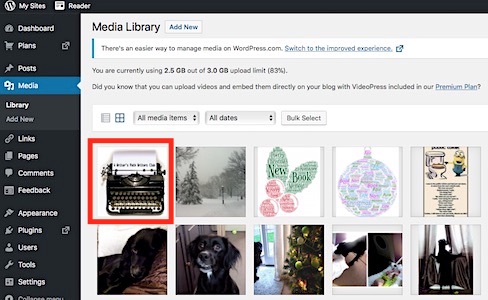
Step 2
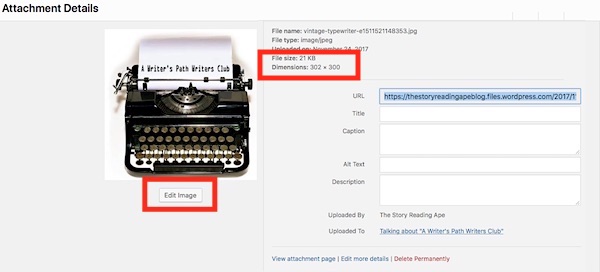
My example has already been adjusted, but you can see its size and weight
To reduce them, click on the Edit Image button shown under the image:
Step 3
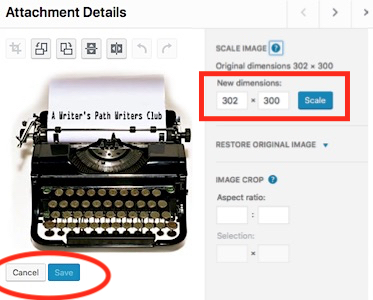
Adjust the size
I use either 600 wide, OR, 300 high
because each WP post width allowance is only 600 pixels.
Authors Please Note:
Although it is tempting to display your book covers full size
at least use JPG Format and NOT use PNG format.
Also
Just use 6oo wide JPG images
They’ll STILL look awesome
For Example:
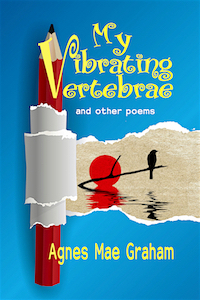
My Mum’s book cover sizes and weights:
2000 x 3000 pixels PNG is 3.5MB
2000 x 3000 pixels JPG is 1MB
600 x 900 pixels JPG (shown below) is 145 KB (0.145MB)
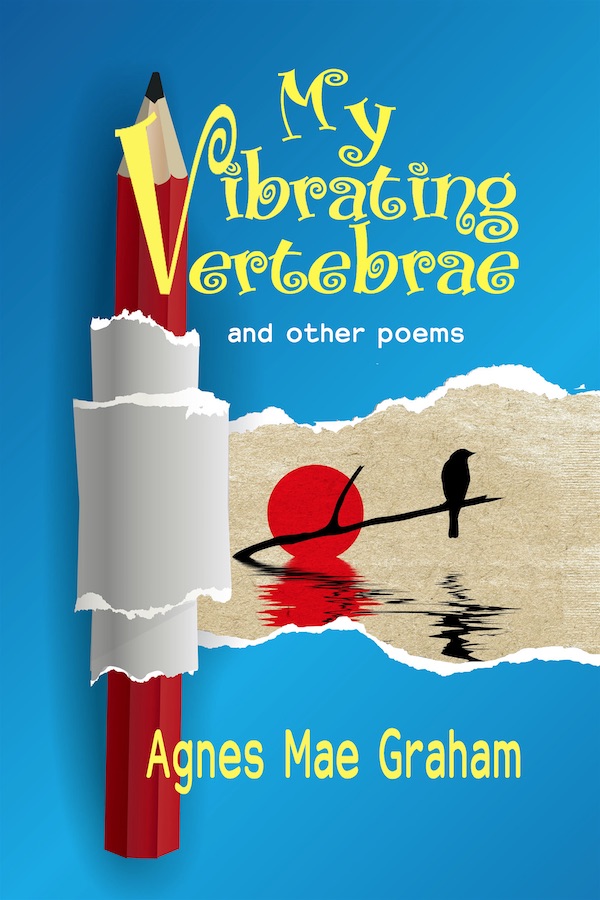
at 200 x 300 pixels JPG (see below) it is 24 KB (0.024MB)
 Chris The Story Reading Ape's Blog
79 thoughts on “Blogger Tip 01 – How to Resize Images inside your WordPress Media and SAVE STORAGE SPACE..”