
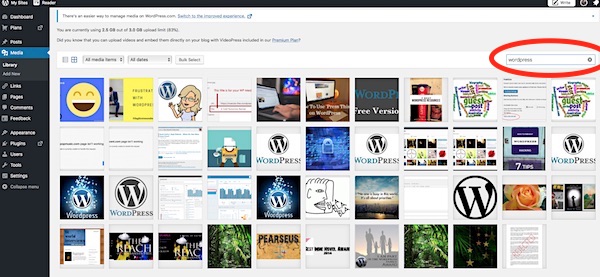
WP TIP 1
If you use more than one image in your posts, then use WordPress Publicize to automatically upload your post to Twitter, Facebook, etc, or, manually upload them, the image last inserted into your post, is the one that will be displayed on your media.
To avoid the wrong image being displayed, either:
Insert it LAST
OR
Select it as your ‘Featured Image’
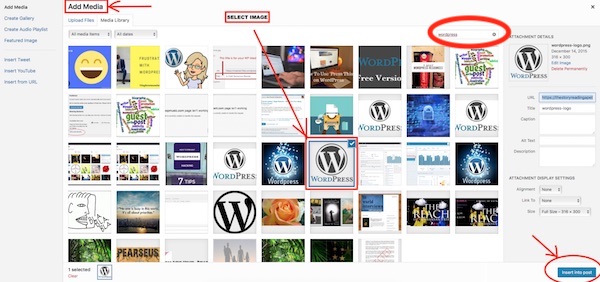
Authors especially would probably prefer their Book Cover being displayed, rather than some other, random, image.
WP TIP 2
If you opt for using a Featured image, or, have the same image appear more than once in your post (as I’ve done on this post):
You DO NOT NEED to upload the same image for each separate appearance!
Select the same image to be inserted wherever you want it to be shown in the post.
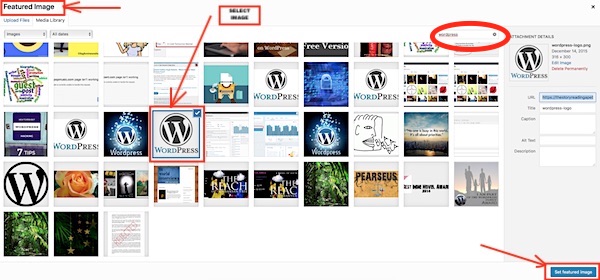
This will save taking up unnecessary space in your media storage.
WP TIP 3
If you post the same image(s) on several different posts, search for it in your media storage (using it as an images archive), select it and add it.
You DO NOT NEED to upload the same image for each separate post!
 Chris The Story Reading Ape's Blog
I also resize the images I put on WordPress prior to uploading them. I hope this not only saves space, but makes the page display faster.
LikeLiked by 1 person
Good Planning, Frank – but if you reblog, check the images attached for: 1) Size, and 2) Do they show up in the extract actually reblogged (free tip – if they do NOT show up – delete them) 😀
LikeLiked by 1 person
Reblogged this on Writer's Treasure Chest and commented:
Need to save more storage? See what else you can do to limit the space used up by your images. Thanks so much for the tips, Chris, The Story Reading Ape!
LikeLiked by 1 person
Welcome 🤗
LikeLiked by 1 person
Reblogged this on Die Erste Eslarner Zeitung – Aus und über Eslarn, sowie die bayerisch-tschechische Region!.
LikeLiked by 1 person
Thank you, Chris these tips are very valuable to me as I have made a few boobs and also wondered why a certain image was displayed and now it is clear..Thank you 🙂 For sharing 🙂
LikeLiked by 1 person
Welcome, Carol 😀
LikeLike
Reblogged this on Finding Myself Through Writing and commented:
And here’s part 2 of working with images on WordPress from Chris. Thanks again for this useful info Chris. ~Elle
LikeLiked by 1 person
Your FIRST tiplet was the one I needed, Chris – I was already aware of the size-saving ones, but I didn’t know how to “force” WPrss to display the image I wanted on the Social shares. THANK YOU!
xx,
mgh
LikeLiked by 1 person
Welcome, Madelyn 😀
LikeLike
Thanks for sharing this info! I have entirely too many in my medial gallery. Sometimes I go in and delete the duplicates to save space. 😆 ♥️
LikeLiked by 1 person
Welcome, Janice 😀
LikeLiked by 1 person
I appreciate the time you took to put these 3 posts together, Chris. You’re very thoughtful ❤
LikeLiked by 1 person
I thought it was about time I shared the secret of how to be a media storage space skinflint, Tina 😄
LikeLiked by 2 people
And I am a grateful recipient! ❤️
LikeLiked by 1 person
I think I have deleted from gallery and that deleted image from post made months before
LikeLiked by 1 person
OOPS – I hope you find it again, Carl 😱
LikeLike
Reblogged this on The PBS Blog and commented:
Part 2 – How to Reduce the Number of Images Required in Your WordPress Media and SAVE STORAGE SPACE from Chris.
LikeLiked by 2 people
Thanks again for sharing, EC 👍😃❤️
LikeLiked by 1 person
Welcome 🙂
LikeLiked by 1 person