
 Story Organization
We talked briefly about this in Article #21, “Plotting.” But now I’d like to go into a little more detail about it.
Whether you’re a plotter or a pantser, you’re simply going to have to keep track of some details, especially if your book deals with the passage of time. And that’s just about every book ever written—whether it’s only one day throughout the whole book or a number of years, or even decades or centuries. You must keep track of what is going on when. In addition to tracking time, you can also plot out your story arc (to be the theme of a future article), false clues (red herrings), foreshadowing, and other details.
As I said in Article #21, some authors use white boards or bulletin boards, notebooks or pads of paper, sticky notes, index cards, or…walls. And then there are those who avail themselves of technology by using the built-in features of Scrivener or Excel workbooks.
A client of mine, Elke Feuer, happened to post a status update one day on Facebook and included an unaltered copy of the photo posted below. I want to share it with the Ape’s readers because it’s an excellent example of organization that takes advantage of several features in Excel. (The photo below has been altered to remove her book’s details and is being shared with her permission.)
Right at the top, in the center, you can see her file name: “Chapter and Scene Outline (title removed).” Including the working title—or real title—in all your file names will make them easier to find, especially if you write/have written/are writing more than one book. Adding a new folder in your My Documents and naming one for each manuscript will also help keep all the different versions and files together.
If you don’t do this… Well, say you write five books—with two potential cover designs, the final cover, the back cover blurb, the full wraparound cover, ten drafts, the version sent for editing, the version that came back from editing, the final version, the formatted version for Kindle, the formatted version for CreateSpace, the formatted version for Smashwords, etc…. Well, that’s five books multiplied by twenty-one potential files for each book, never mind research notes and other random documents! Do you really want to comb through all those files looking for the correct research document when your editor told you to double-check a quote?
So. Now that I’ve raised your blood pressure by several points, let’s go on with the workbook. 🙂
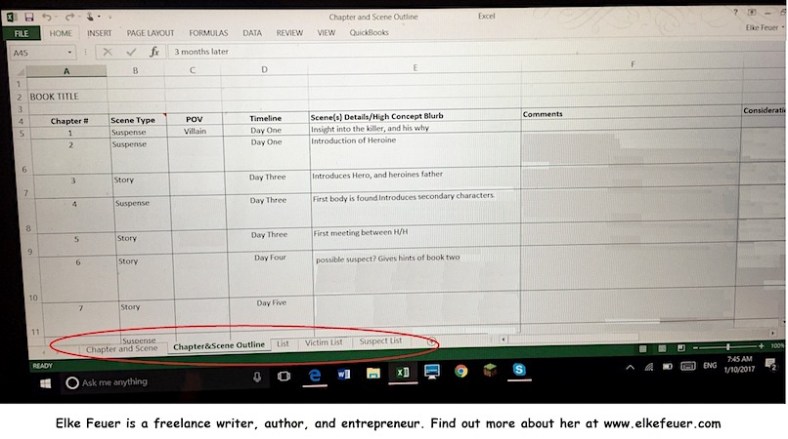
If you look down at the bottom of her screenshot, in the red circled area, you’ll see the workbook she has open contains several worksheets. The one showing (selected) is called “Chapter&Scene Outline,” but she has others, including “Victim List” and “Suspect List” (Elke writes mystery thrillers). The tab simply marked “List” probably compiles everyone who appears in the book, and I’ll bet their hair color, eye color, occupation, relationship status, employment status, etc., are all listed along with their names and nicknames. Her tab marked “Chapter and Scene” breaks down each chapter in more detail.
Across the top of the open worksheet, “Chapter&Scene Outline,” the column headers contain the basic information to be tracked. I especially like the “Scene Type” heading. Obviously, the information you put in your spreadsheet will be different from the data she’s included. Another style of book, or a much more complicated one, might have different row and line headings.
See how she’s mixed her suspenseful chapters in amongst chapters that simply contain the storyline moving forward? This kind of information will help you keep track of your story arc, as well as what kind of chapter you’re supposed to be adding.
So on this worksheet you’d have the basic outline for your book, whether it’s already been written (pantser) or if you’re just starting (plotter), plus all the details you need to ensure it’s consistent and in order. If you need any help with setting up an Excel workbook in this manner, just give me a holler!
What do you use for organizing your books?
We’re Dun with this series for now, but keep on Writin’ and don’t forget to bookmark the series index page below.
 Susan
Susan
 Chris The Story Reading Ape's Blog
Thanks for this excellent series Susan. I learned long ago about those folders, thankfully they’re all labeled, but still too many. I have a hard time clicking that delete button, lol. And great that Chris will have it available for reference. 🙂
LikeLiked by 2 people
You’re welcome! Thanks for being a loyal reader! ❤
LikeLiked by 2 people
My absolute pleasure. Glad your posts will still be available for reference. 🙂 ❤
LikeLiked by 2 people
Reblogged this on Author Don Massenzio and commented:
Check out this great post from Adirondack Editing on the topic of story organization from The Story Reading Ape Blog.
LikeLiked by 2 people
Thanks for sharing, Don 😀
LikeLiked by 1 person
You’re welcome.
LikeLiked by 1 person
Thanks a lot, Don! I hope your readers enjoyed the series. 😀
LikeLiked by 2 people
You’re welcome.
LikeLiked by 2 people
Reblogged this on Die Erste Eslarner Zeitung – Aus und über Eslarn, sowie die bayerisch-tschechische Region!.
LikeLiked by 2 people
Thanks, Michael 😃
LikeLike
Thank you very much, Michael. 😀
LikeLiked by 1 person
Reblogged this on Writing for the Whole Darn Universe.
LikeLiked by 2 people
Many thanks for sharing, Malia Ann ❤️
LikeLiked by 1 person
You’re welcome, Chris! 🙂
LikeLiked by 1 person
Thanks, Malia Ann! Now the Whole Darn Universe is ready to write, edit, and/or publish their book. ❤
LikeLiked by 2 people
You’re welcome, Susan! The Whole Darn Universe now knows the key to getting everything properly done is excellent organization. 🙂 Hmm…now where did I stick that napkin that has the whole plot to my next book scribbled on it…
LikeLiked by 2 people
Hahahaha! ❤ ❤ ❤
LikeLiked by 2 people
Keeping things organized really helps especially when and if one ever gets to a point of blogging daily.
great information and post
LikeLiked by 2 people
You’re right, Eddie! Thanks for reading and commenting. 😀
LikeLiked by 2 people
Thanks, Eddie 😀
LikeLiked by 1 person
Reblogged this on Becky's Book Notes and commented:
Adirondack Editing is back with the last post of the series. I am so sorry to see it end and hope to see Susan back with another series for us! Thanks to both Susan and Chris for the wonderful tips!
LikeLiked by 2 people
Many thanks for re-blogging, Becky 😀
LikeLike
Thanks so much, Rebecca! ❤
LikeLiked by 2 people
My pleasure! Thank you so much for your help. I hope you will continue with another series? 😀
LikeLiked by 1 person
I don’t know, Rebecca. This is the second time we’ve run this series, with some new additions. The material is old enough now (and I’m wiser) that it needs to be reworked before being released again. And it does take a lot of time, as I have to be sure the information is correct. I know a lot off the top of my head, but I’m not a walking encyclopedia! That means I have to do some research in addition to writing the articles.
LikeLiked by 2 people
Reblogged this on TINA FRISCO and commented:
Susan Uttendorfsky is on Chris The Story Reading Ape’s blog with Part 64 of her Editing 101 series: Story Organization. This series is second to none, and I’m sorry to see it end. If you’ve missed any episodes, Chris has indexed them for us so we can bookmark. A heartfelt thank you to Susan and Chris for this outstanding series ❤
LikeLiked by 2 people
Many thanks for re-blogging and the great intro, Tina 😀 ❤
LikeLiked by 1 person
Welcome, Chris 😀 ❤
LikeLiked by 1 person
❤ ❤ ❤ ❤
Thank you!
LikeLiked by 2 people
Welcome, Susan 😀 ❤
LikeLiked by 2 people
I hope you don’t mind, but I have a question not related to this post but on editing. I use ProWritingAid and I have encountered the following grammar error; “You have mixed curly and straight quotes in the paragraph.” Can someone explain what this is and how to correct it? I would be appreciative.
LikeLiked by 3 people
I think this refers to quotation marks. In Word, I have opted for “straight quotes,” which look like the ones I’ve just used. Both sets look the same. I did it by checking or unchecking a box somewhere in Word. Curly quotes look like 66 on the left and 99 on the right of the words they surround. I’ve noticed when Word autocorrects when I omit the apostrophe in a word like “won’t,” it supplies a curly apostrophe (looks like a 9). I don’t know how you would have both curlies and straights in a single paragraph, but this may be it. Can’t suggest a correction without knowing exactly what you’re using to create your document.
LikeLiked by 2 people
OK, I see that when I posted my reply, those quote marks I used were changed to the 66/99 format, and so are no longer straight. I hope all this makes sense, nevertheless.
LikeLiked by 2 people
This is a photo that shows the difference between straight (aka dumb) and curly (aka smart) quote marks:

You can turn on smart quote in options in Word, so that every time you type a ” or a ‘, they come out curly. However, if you routinely copy and paste material from other sources into your document, the quote marks copied may stay straight.
A routine editorial task is to have the smart quote option turned on and then using Find/Replace, simply replace ” with ” and ‘ with ‘ and it’ll replace them all so they’re curly. 😀
Having all straight quote marks is fine (although it does look a little unprofessional), but the biggest problem is when you have mixed straight and curly ones.
LikeLiked by 1 person
Thank you, both. Yes, I have noticed in Word, I get a variety of double and single quote marks (e.g. curly). I’ll look at my Word to see if it is set up correctly. Susan your example is what is happening. When I have found it in the past, I have been unable to correct it. Until ProWritingAid, nothing has caught the error. HUGS
LikeLiked by 2 people
Terrific article, Susan. Your tip on creating folders made me stop in my tracks and finally do just that. I’ve only recently discovered the usefulness of folders. Can you believe it? How can something so obvious go unrealized for so long? I’m sorry to see this series end. It has been outstanding in its content, and you have been extraordinarily generous. Thank you so much for sharing your time and knowledge with us. Hugs, my friend ❤
LikeLiked by 3 people
Awwww. Thank you, Tina, and I’m glad the last post taught you something new!!! 😀
((((((((hugs)))))))))))
LikeLiked by 2 people
Welcome, Susan. I’ve learned so much from this series 😀 ❤
LikeLiked by 2 people